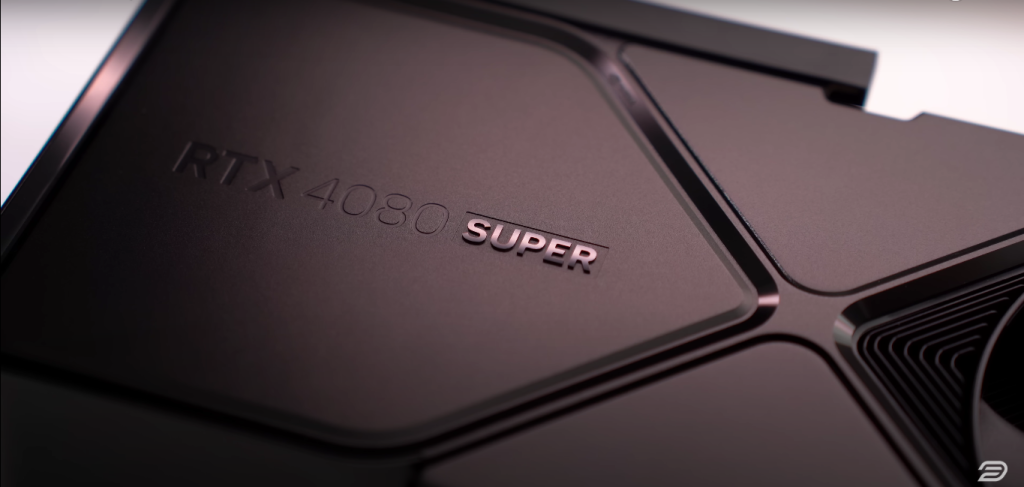
We’re using the new RTX 4080 Super, which is designed to deliver the same performance as the original 4080 but at a $200 lower price. It also has a clean, all-black aesthetic that looks great. Compared to the original 4080, there are slight improvements in core count, clock speeds, and memory bandwidth, but the main difference is the price drop—something many felt was overdue. From my testing on a 14900K test bench, performance gains are modest—around 2 to 5%—which lines up with NVIDIA’s claims. In Forza Horizon 5, I saw about a 2.5% frame rate increase. Compared to the 4070 Ti Super, the 4080 Super offers around a 21% boost, and across multiple games, I’ve seen performance increases in the 15–25% range. Both cards can handle 4K 60fps easily, but the 4080 Super is more comfortable for 4K 120fps gaming.
This card isn’t aimed at current 4080 owners. It’s meant to convince 2000- and 3000-series users to upgrade. Compared to the 3080, the 4080 Super delivers roughly 60% better performance, which is a solid generational leap. Although it doesn’t match the original $700 MSRP of the 3080, that price point was rarely available in practice. With frame generation—AI-generated frames inserted between native ones—you get smoother motion, especially in single-player titles like Alan Wake 2. While it’s not ideal for competitive shooters due to added latency, in high-fidelity games, the latency is minimal and well worth the visual upgrade. Even with maxed-out path tracing settings and DLSS enabled, performance holds up around 50–60 fps, and enabling frame generation bumps that to a smoother 75–80 fps.
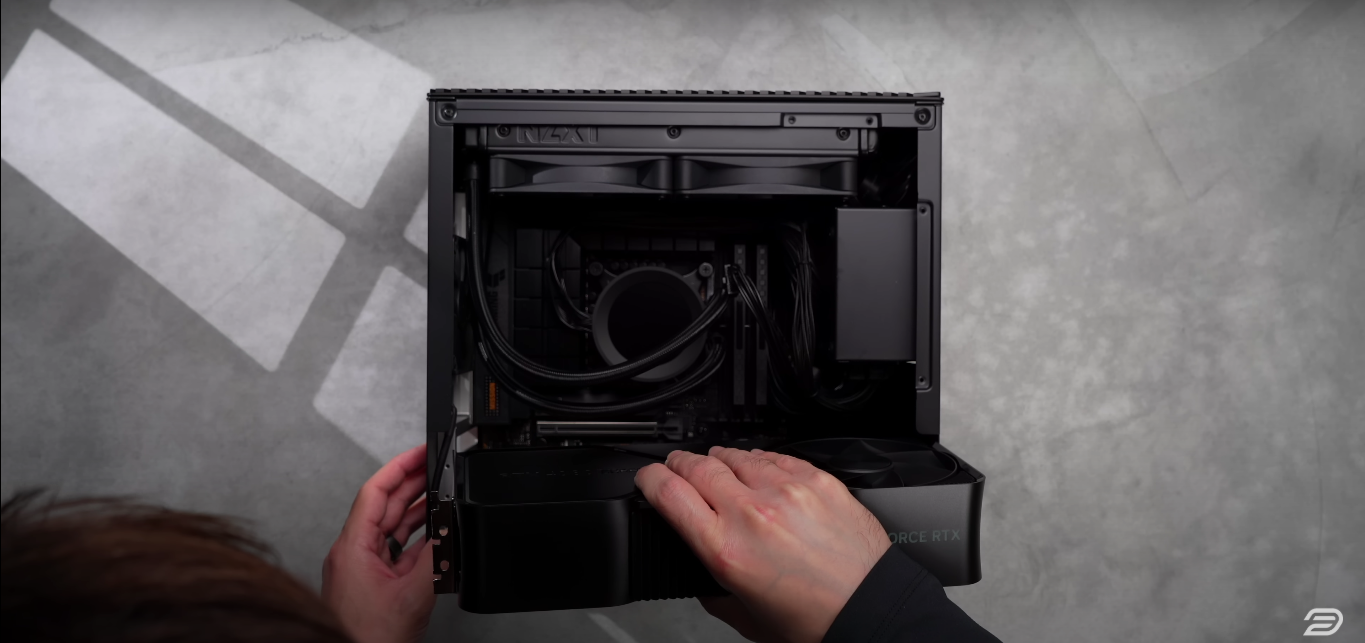
Physically, the 4080 Super is nearly identical to the original. It still uses the blow-through style cooler and the compact Founders Edition design, now fully blacked out. It’s small enough to fit in cases that can be carried in a backpack, making it ideal for LAN parties or travel setups.


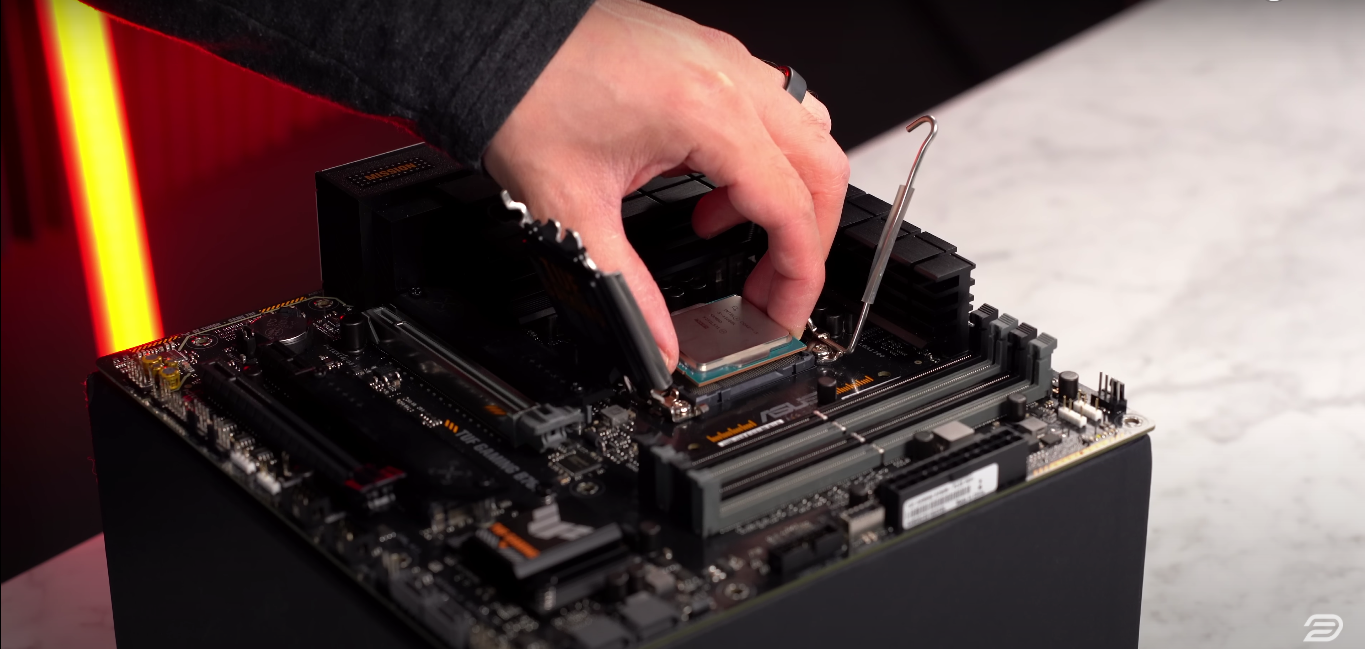
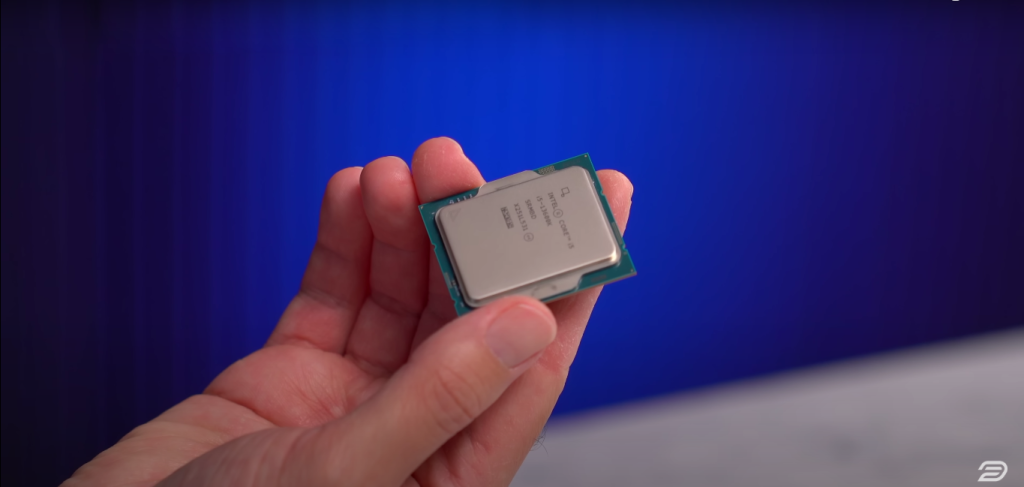 I’m going to be using the i5-13600K, which has 14 cores—six of which are performance cores—and it can boost up to 5.1 GHz. This is still one of the better options available, especially on the Intel side. While the AMD 7800X3D is technically the fastest gaming CPU at the moment, the gains over the 13600K are negligible in most titles, particularly at 4K, which is our target here. The newer 14th-gen 14600K is also available and isn’t much more expensive, but the performance difference between the two is minimal. I don’t see any reason to upgrade when the 13600K is still more than fast enough for today’s GPUs.